Installing a forex robot on MetaTrader 5 takes under 3 minutes. You need two things: MT5 already installed and logged into your broker account, and your EA file in .ex5 format. If your file is .ex4, stop here — .ex4 files are MT4 only and will not run on MT5 under any circumstance. You need the .ex5 version from your EA developer.
MT4 vs MT5 Installation — Key Differences
If you have already installed an EA on MT4, the MT5 process is nearly identical — with five important differences. Confusing any one of these is the source of most failed MT5 installations.
| Element | MT4 | MT5 |
|---|---|---|
| EA file format | .ex4 | .ex5 — not interchangeable |
| Folder path | MQL4/Experts | MQL5/Experts |
| AutoTrading button name | AutoTrading | Algo Trading |
| EA Properties tabs | Common + Inputs | Common + Inputs + Dependencies |
| Account mode | Hedging only | Hedging or Netting (broker-dependent) |
| Error log location | Terminal → Experts tab | Terminal → Journal tab |
If your EA file is .ex4 and you need the MT4 installation process, see the complete guide: how to install a forex robot on MT4.
Before You Start
Confirm these before touching the Experts folder:
| File Type | What It Is | Ready to Run on MT5? |
|---|---|---|
| .ex5 | Compiled EA for MT5. Source code is hidden. | Yes — paste into MQL5/Experts and run |
| .mq5 | MQL5 source code. Readable and editable. | No — must be compiled in MT5 MetaEditor (F7) first |
| .ex4 | MT4 compiled file. | No — incompatible with MT5. Request .ex5 from developer. |
| .mq4 | MT4 source code. | No — MQL4 cannot be compiled in MT5 MetaEditor without full conversion. |
Also confirm your broker account permits automated trading. Some account types restrict EA execution on live accounts. For a full breakdown of which jurisdictions and broker configurations block automated trading, see is it legal to use forex EAs.
If you have not yet decided which EA to install on MT5, what is a forex EA covers the difference between trading EAs and utility EAs — which affects how you configure the Inputs tab in Step 4.
Step 1: Open the MT5 Data Folder
In MetaTrader 5, click File in the top menu bar, then select Open Data Folder. This opens your MT5 root directory in Windows Explorer.
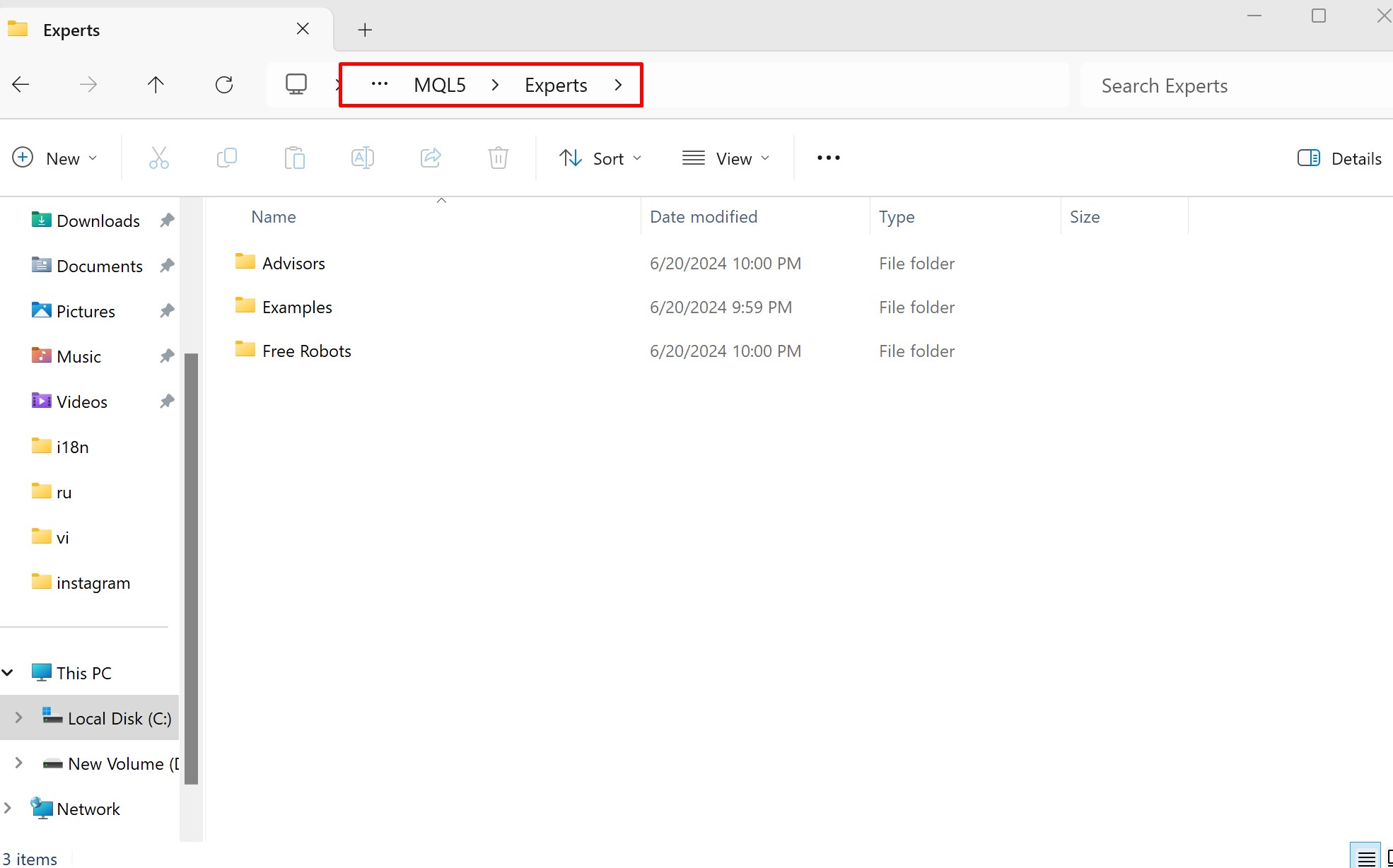
Navigate into the MQL5 folder, then open Experts. This is the only folder MT5 reads for EA files. Note the folder name carefully: it is MQL5, not MQL4. If you paste your file into MQL4/Experts by mistake, MT5 will never find it.
Step 2 — Copy the .ex5 File into the Experts Folder
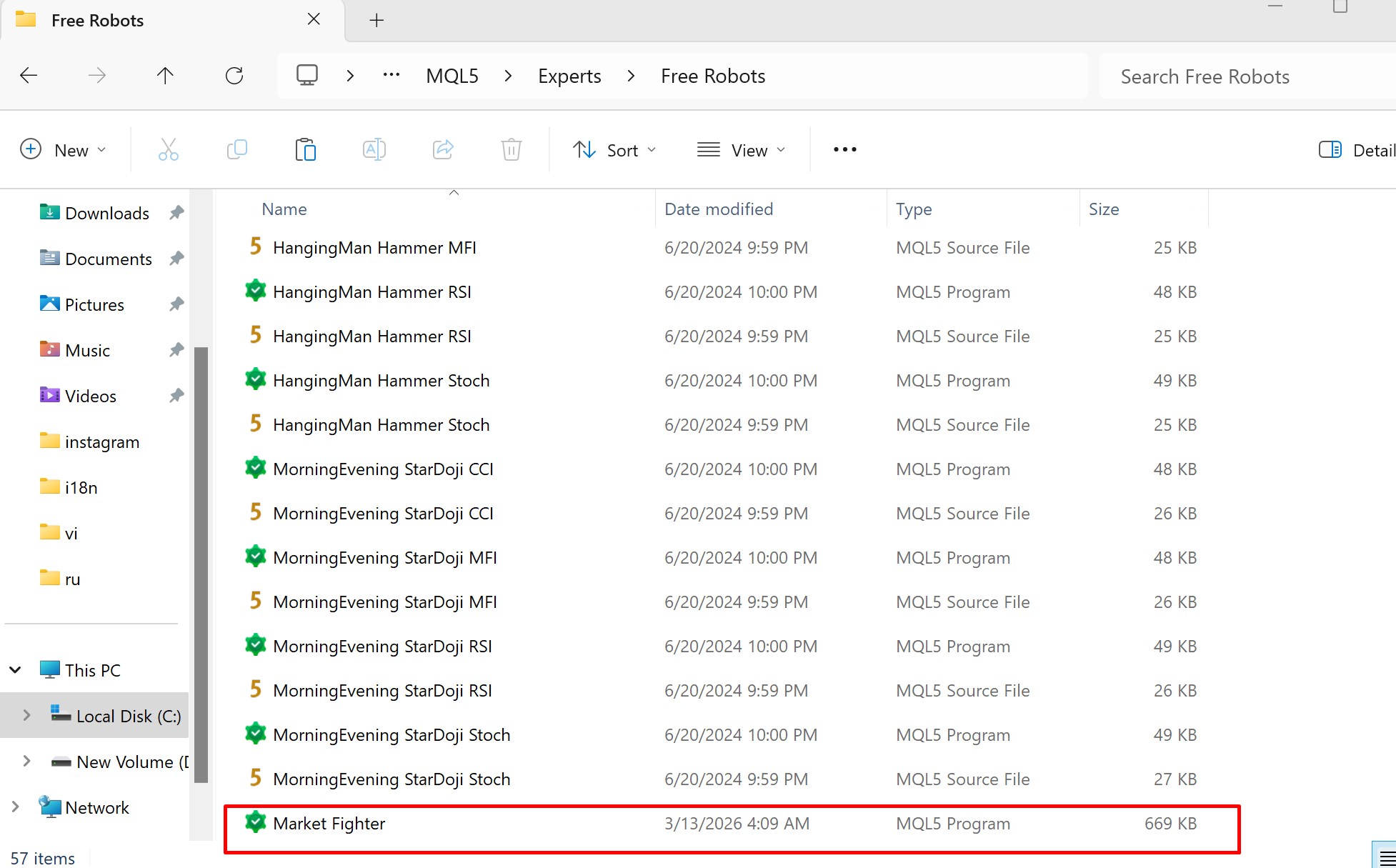
Paste your .ex5 file into the MQL5/Experts folder. If your EA came with additional files, place them as follows:
- .ex5 file → MQL5/Experts
- .set file (preset parameter settings) → MQL5/Presets
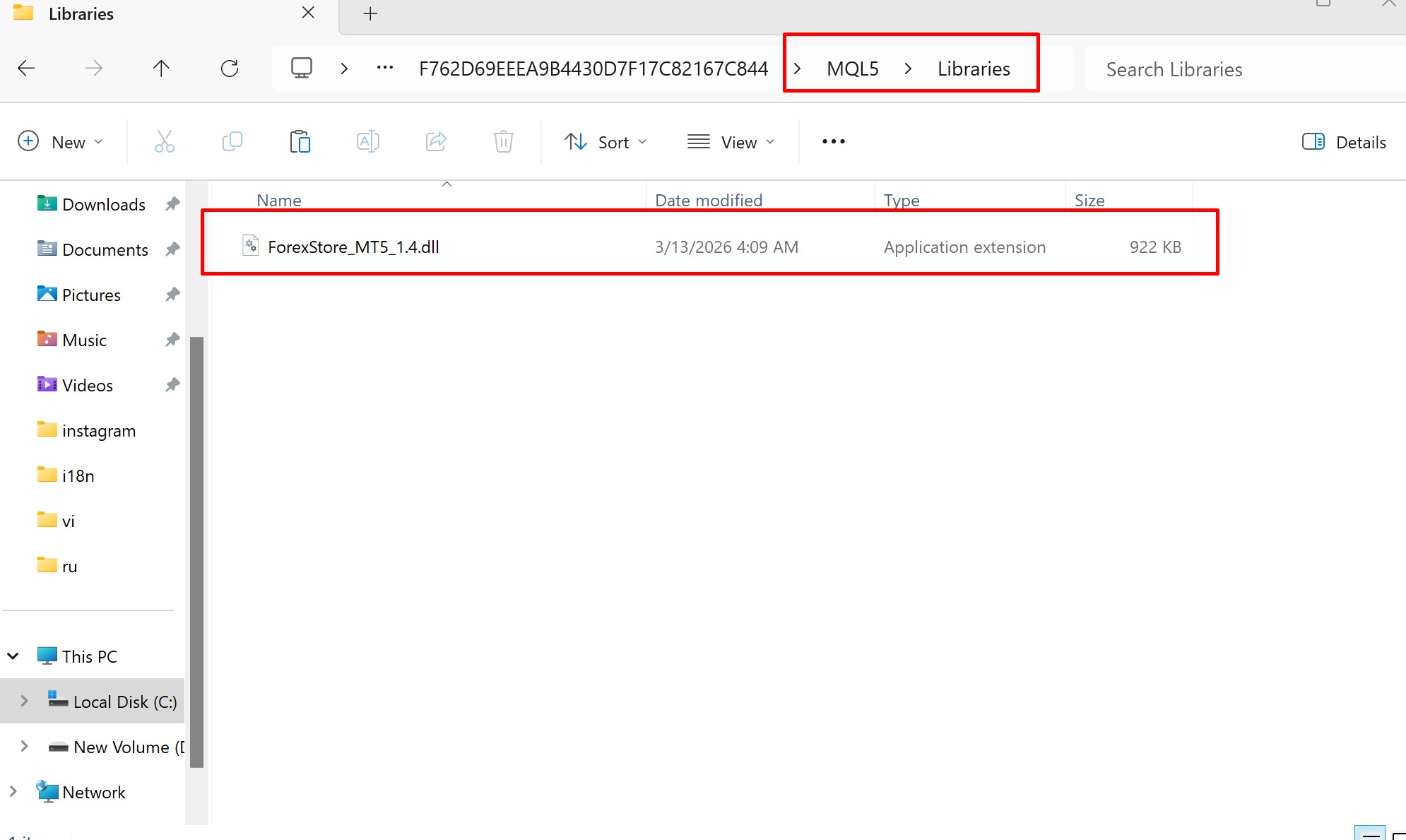
- .dll file (required external library) → MQL5/Libraries
Missing .dll files are among the most common causes of “Initialization Failed” errors on MT5. Check your EA vendor’s installation documentation for any required companion files before proceeding to the next step.
The forex robot below comes with additional files, so I need to paste each file to its right folder
Step 3: Refresh Navigator or Restart MT5
MT5 does not auto-detect new files added while the platform is running. Two options:
- Restart MT5 fully — Close completely and reopen. Most reliable.
- Refresh Navigator — In the Navigator panel (Ctrl+N), right-click Expert Advisors and select Refresh. Faster, but occasionally misses newly added files.
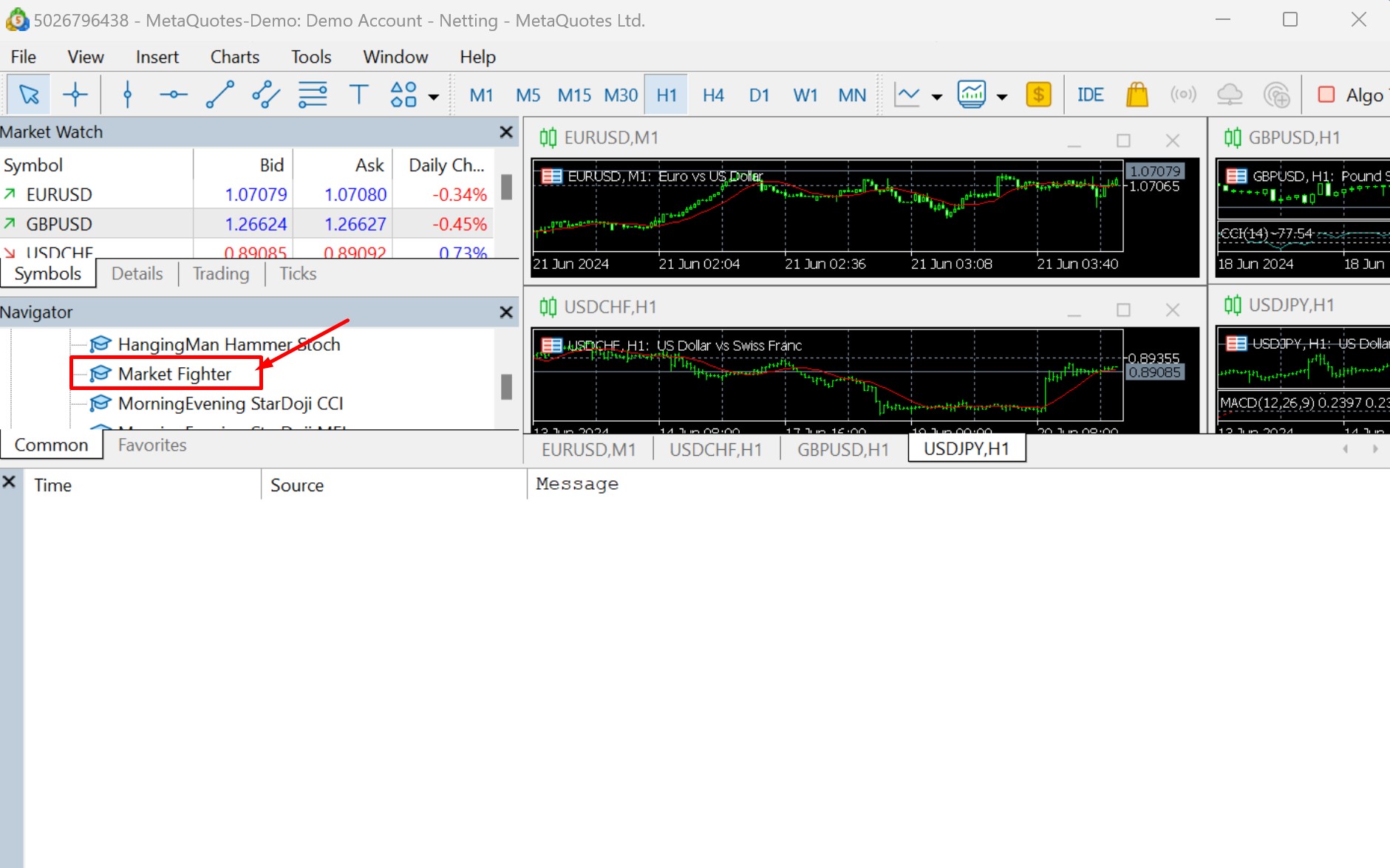
After refreshing, expand the Expert Advisors section in the Navigator panel. Your EA should appear by filename. If it does not, return to Step 2 and confirm the file is in MQL5/Experts — not MQL4/Experts.
Step 4: Attach EA to Chart
Drag the EA from the Navigator panel onto the correct chart. Attach it to the exact symbol and timeframe the EA was designed for. A gold EA belongs on an XAUUSD chart. A EUR/USD scalper belongs on a EURUSD chart at the specified timeframe. Check the EA documentation if unsure — attaching to the wrong symbol causes incorrect pip value calculations and broken position sizing.
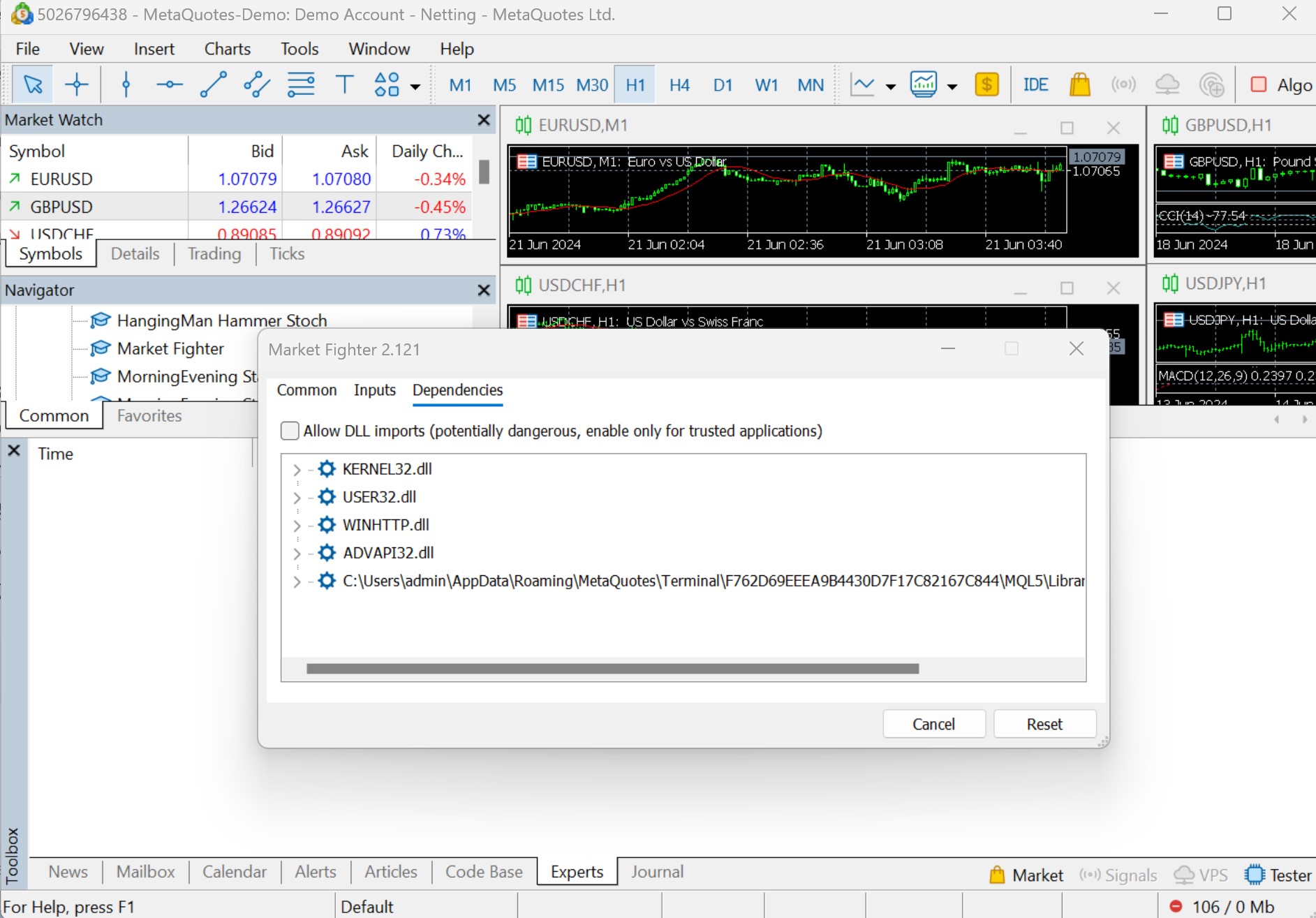
When you drop the EA onto a chart, the EA Properties window opens. MT5 has three tabs — one more than MT4:
- Common tab — Tick Allow Algo Trading. This is mandatory. Without it, the EA loads but will never execute a trade regardless of any other setting.
- Inputs tab — EA-specific parameters: lot size, stop loss, magic number, risk percentage. Do not change defaults unless you understand what each controls. If your EA came with a .set file, load it here using the Load button.
- Dependencies tab — MT5-only tab. Lists any external indicators or DLL files the EA requires. If a required file shows as missing here, the EA will fail on initialization. Copy the missing file to the correct MQL5 subfolder and restart.
Step 5: Enable Algo Trading
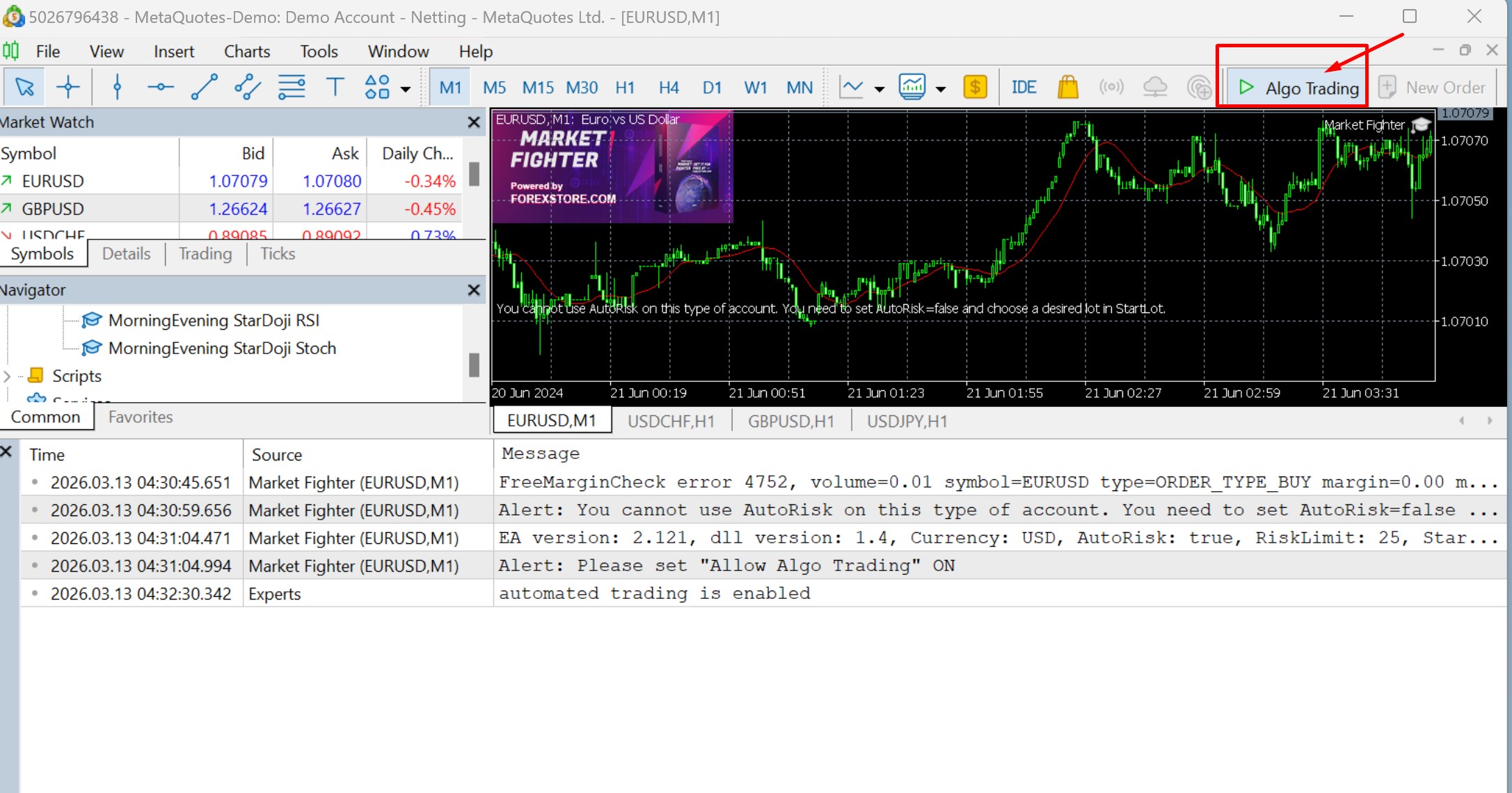
Locate the Algo Trading button in the MT5 toolbar. Click it until it turns green. A red button means automated trading is globally disabled across the entire platform — no EA will execute trades regardless of individual settings.
Note the naming difference: MT4 calls this button AutoTrading. MT5 calls it Algo Trading. Same function, different label. If you are following MT4 documentation while working in MT5, this is a common point of confusion.
Once Algo Trading is enabled and the EA is correctly attached, check the top-right corner of your chart:
- Smiley face (☺) — EA is active and scanning for signals
- Frowning face (☹) — EA is attached but blocked from trading. Check the Algo Trading button and the Allow Algo Trading checkbox in EA Properties Common tab.
Step 6 : Verify in Journal Tab
Open the Terminal window (Ctrl+T) and click the Journal tab. On MT5, the Journal tab is the primary log for EA activity — this is different from MT4, which logs EA activity in the Experts tab. The Journal records every initialization message, trade attempt, and error.
A clean log with initialization messages and no red error lines confirms the EA is running correctly. If you see errors, do not ignore them. Copy the exact error text and check the troubleshooting section below before making any other changes.
![MT5 Terminal → Journal tab showing clean initialization log after EA start]](https://oreshnikbot.com/wp-content/uploads/2026/03/check-log-of-forex-robot-mt5-after-installation.jpg)
Installation Checklist
Before assuming your EA is live and trading, confirm all eight points:
- .ex5 file is in MQL5/Experts — not MQL4/Experts, not MQL5 root
- EA appears in Navigator under Expert Advisors
- EA is attached to the correct symbol and timeframe
- “Allow Algo Trading” is ticked in EA Properties → Common tab
- Dependencies tab shows no missing files
- Algo Trading button in toolbar is GREEN
- Smiley face is visible on chart (not frowning face)
- Journal tab shows no error messages
All eight confirmed means your EA is installed and running.
Hedging vs Netting Mode — MT5-Specific
This section has no equivalent in MT4 — because MT4 only operates in hedging mode. MT5 introduced a second account mode called netting, and some brokers assign it by default. If you do not check this before running an EA, it can cause the EA to behave unexpectedly or fail entirely.
Hedging mode: You can hold multiple positions in the same symbol simultaneously — long and short at the same time. This is the standard mode for most commercial EAs, particularly grid and hedge systems. MT4 always operates in hedging mode.
Netting mode: Only one position per symbol at a time. Opening a second position in the same direction adds to the first. Opening a position in the opposite direction partially or fully closes the first. Grid EAs and any EA that uses simultaneous opposing positions will not function correctly on a netting account.
How to check your account mode in MT5: go to View → Terminal → Account tab. The account mode is listed next to your account number. If it shows “netting” and your EA was designed for hedging, contact your broker to open a hedging account — or choose an EA compatible with netting mode.
For verified MT5 EAs that have been tested specifically on hedging accounts with real Myfxbook data, see the best forex robots for MT5 — including equity drawdown figures, not just balance curves.
Troubleshooting: 7 Common MT5 Installation Errors
1. EA Does Not Appear in Navigator
The file is in the wrong folder or Navigator has not refreshed. Confirm the .ex5 is specifically in MQL5/Experts — not MQL4/Experts, not the MQL5 root directory. Right-click Expert Advisors in Navigator → Refresh. If still missing, fully restart MT5.
2. “Initialization Failed” in Journal Tab
Three most common causes: a required .dll file was not copied to MQL5/Libraries, the EA was compiled for a different MT5 build version and is incompatible, or the EA requires a license key that has not been activated. Check the Dependencies tab in EA Properties for missing files before anything else.
3. Frowning Face on Chart
Either the global Algo Trading button is red, or “Allow Algo Trading” was not ticked in EA Properties. Double-click the EA name on the chart to reopen Properties, check the Common tab, confirm the checkbox, and click OK. Then verify the Algo Trading button is green.
4. “DLL Imports Not Allowed” Error
The EA requires DLL access but the permission is blocked. In EA Properties → Common tab, tick Allow DLL Imports. Only do this for EAs from sources you trust. Malicious DLL imports are a known attack vector for trading platform malware.
5. EA Running but Opening No Trades
The EA is functioning but no entry signals are triggering. Common causes: wrong timeframe, wrong symbol, outside the EA’s permitted trading hours, spread wider than the EA’s maximum, or account balance too low for the EA’s minimum lot calculation. Check the Journal tab — well-coded EAs log the reason they are not trading in plain text.
6. “Hedge Is Not Allowed” Error
This error is MT5-specific and does not occur on MT4. It means your broker account is in netting mode, but the EA attempted to open a position in the opposite direction of an existing trade. The EA requires a hedging account. See the Hedging vs Netting section above for how to check and resolve this.
7. MT4 EA (.ex4 File) Will Not Load
This is the most common error when traders migrate from MT4 to MT5. An .ex4 file is MT4-only. MT5 will not recognize, open, or run it. You need the .ex5 version of the same EA. Contact your EA developer and request the MT5-compatible version. If the developer only supports MT4, the EA cannot run on MT5 without full recoding in MQL5.
Testing Before Live Trading — MT5 Strategy Tester
MT5’s Strategy Tester is significantly more capable than MT4’s equivalent. Key improvements relevant to EA testing:
- Real tick data — MT5 can test using actual tick-by-tick historical data, not just modelled ticks. More accurate results, especially for scalping EAs.
- Multi-currency testing — MT5 Strategy Tester supports testing EAs that trade multiple symbols simultaneously — not possible in MT4.
- Optimization mode — MT5 supports genetic algorithm-based parameter optimization across multiple cores, significantly faster than MT4’s sequential optimization.
Before running any EA on a live account, follow this sequence:
- Backtest — Run the EA against historical tick data using Strategy Tester. Look for consistent equity curve, not just high returns. A strategy with 80% win rate but 30% maximum drawdown is not safer than one with 60% win rate and 10% drawdown.
- Demo account forward test — Run on a demo account for a minimum of 2–4 weeks under live market conditions. Check equity daily, not just balance. Floating losses not reflected in balance are the most commonly missed warning signal.
- Live account — minimum lot — Start on a live account at minimum lot size for the first 4 weeks. Verify the EA behaves identically on live as it did on demo before scaling lot size.
Use the forex position size calculator to determine the correct base lot for your account balance and risk tolerance before configuring the EA’s Inputs tab for live trading.
Home PC vs VPS
MT5 is more resource-intensive than MT4. The platform requires more RAM and CPU for the same number of charts and EAs. Running MT5 with multiple EAs on an aging home PC increases the risk of platform lag, delayed order execution, and unexpected restarts.
Beyond hardware, the same fundamental risk applies as with MT4: if your PC shuts down, loses internet, or restarts for a Windows update during an active position, your EA stops managing the trade. Open positions remain with no stop loss execution and no exit logic running. For any EA trading live capital, a VPS is risk management infrastructure — not an optional upgrade. For a full breakdown of how VPS proximity to broker servers affects execution latency and fill quality, see how forex robots work: the technical breakdown.
Next Steps After Installation
Installation confirms the EA can run. It does not confirm it is configured correctly for your account size, broker, or current market conditions. Three things to do before considering any position live:
- Confirm your account is in hedging mode if the EA uses grid or hedge strategies
- Set lot size via the position size calculator — enter the result into the EA Inputs tab, not a guessed number
- Run demo for 2–4 weeks minimum and monitor equity, not just balance
If you have not yet selected which EA to run on MT5, the best forex robots for MT5 ranks verified systems by live Myfxbook data — equity curve, real drawdown, and verified withdrawal history.
If you want to run a gold EA specifically on XAUUSD, the best gold forex robot guide covers which MT5-compatible systems survived the February 2026 high-volatility period with equity intact — and which ones were masking significant floating losses during the same period.
Frequently Asked Questions
Can I install an MT4 EA (.ex4 file) on MT5?
No. MT4 EAs compiled as .ex4 files are not compatible with MT5. MT5 requires .ex5 files compiled in MQL5. If your EA developer only provides an .ex4 version, you need to request the .ex5 version specifically. MQL4 source code (.mq4) also cannot be compiled in MT5’s MetaEditor without full conversion to MQL5 — the two languages are similar but not identical, and the order management functions differ significantly between platforms.
What is the difference between Algo Trading (MT5) and AutoTrading (MT4)?
They are the same function with different labels. MT4 calls it AutoTrading. MT5 renamed it to Algo Trading. Both must be enabled (green button) for any EA to execute trades. The underlying behavior is identical — disabling either button globally blocks all EAs on that platform instance, regardless of individual EA settings.
Does MT5 support hedging mode EAs?
MT5 supports hedging mode, but only if your broker account is configured for it. MT5 introduced netting account mode that some brokers apply by default. In netting mode, you can only hold one position per symbol at a time. EAs using grid or hedge strategies require a hedging account. Check your account type in MT5 under View → Terminal → Account before running any grid or hedge EA live.
Can I run the same EA on MT4 and MT5 simultaneously?
Only if the EA developer has released both an .ex4 (MT4) and .ex5 (MT5) version. They are separate compiled files. Running both simultaneously on the same symbol and same account would create conflicting positions and signals. If you want to run the same strategy on both platforms, use separate trading accounts for each.
Can I install a forex robot on MT5 mobile (Android or iOS)?
No. The MT5 mobile app does not support EA execution on Android or iOS. Expert Advisors only run on the MT5 desktop platform or on a VPS running the desktop version. You can monitor trades placed by your desktop EA through the mobile app — check open positions, account balance, and trade history — but you cannot run or configure the EA itself from a phone.

Work my fulltime job as the developer and writer for Oreshnikbot.com now. Have been working on forex and forex EAs for 10 years.