Installing a forex robot on MetaTrader 4 takes under 3 minutes. You need two things: MT4 already installed and logged into your broker, and your EA file in .ex4 format. No coding skills required.
Before You Start
Most installation failures happen before Step 1 because of file type confusion. Here is what you need to know upfront.
| File Type | What It Is | Ready to Run? |
|---|---|---|
| .ex4 | Compiled EA — source code is hidden. Standard format for commercial EAs. | Yes — drop into Experts folder and run |
| .mq4 | Source code file. Readable, editable MQL4 script. | No — must be compiled in MetaEditor first (F7) |
You also need to confirm your broker account permits automated trading. Some broker account types restrict EA execution. If you are unsure whether your setup is compliant, see the full breakdown in Is It Legal to Use Forex EAs — including what “broker TOS violation” looks like in practice.
If this is your first EA and you have not yet decided which system to install, see What Is a Forex EA before continuing — it covers the difference between trading EAs and utility EAs, which affects how you configure Step 4.
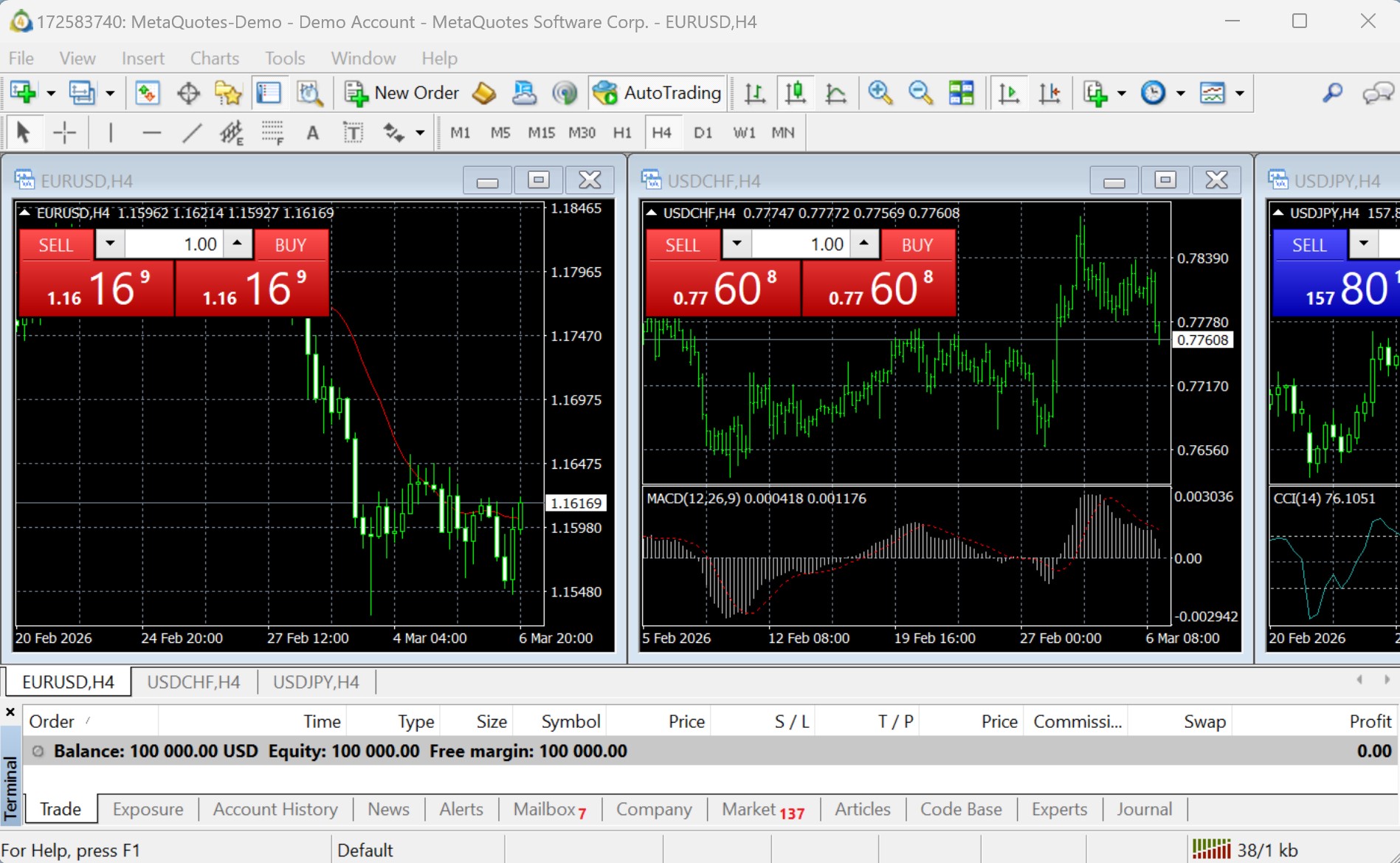
Step 1: Open the MT4 Data Folder
In MetaTrader 4, click File in the top menu bar, then select Open Data Folder. This opens your MT4 root directory in Windows Explorer.
From there, navigate into the MQL4 folder, then open Experts. This is the only folder MT4 reads for EA files. Do not paste your .ex4 file anywhere else on your computer — MT4 will not find it.
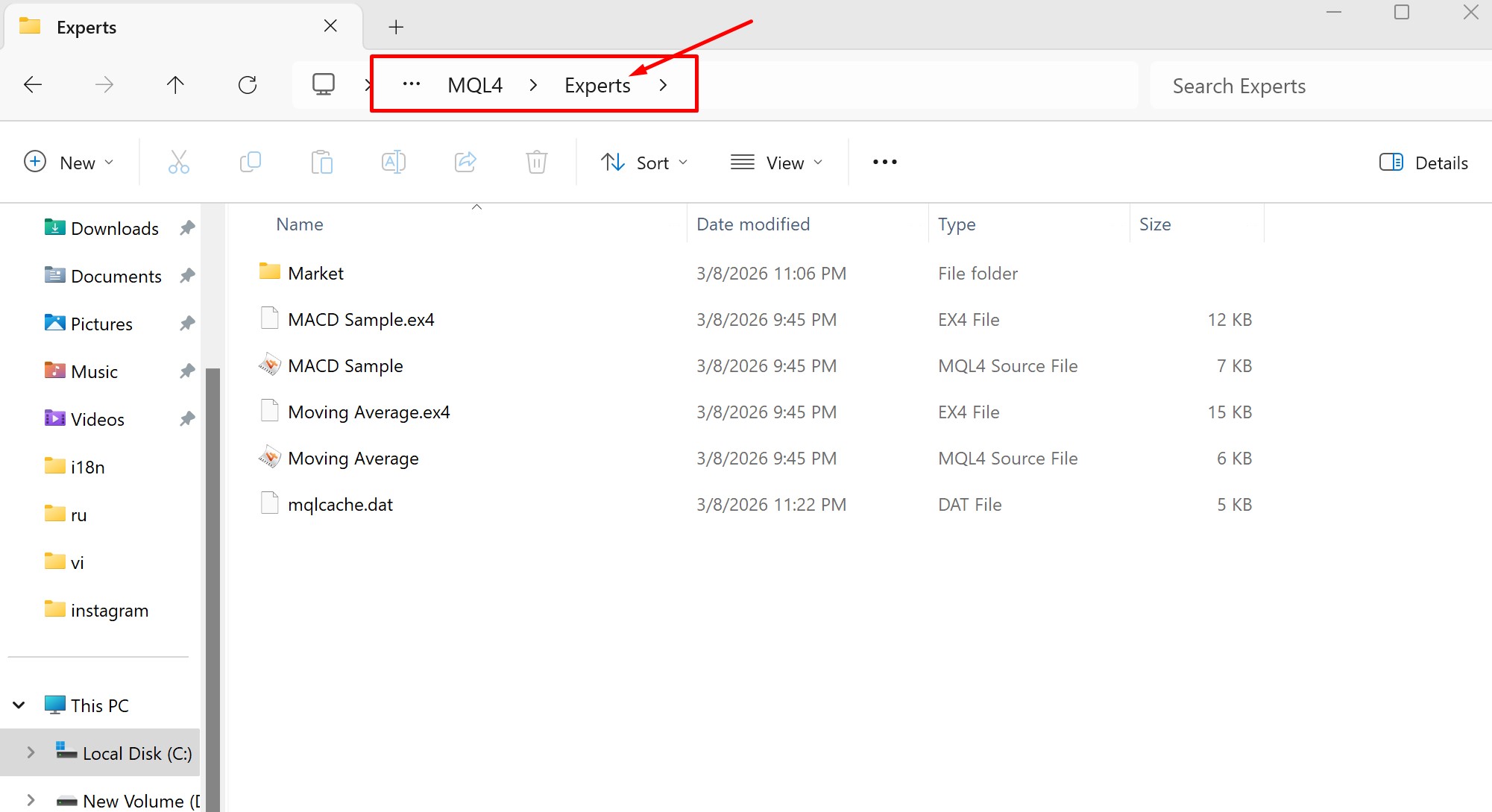
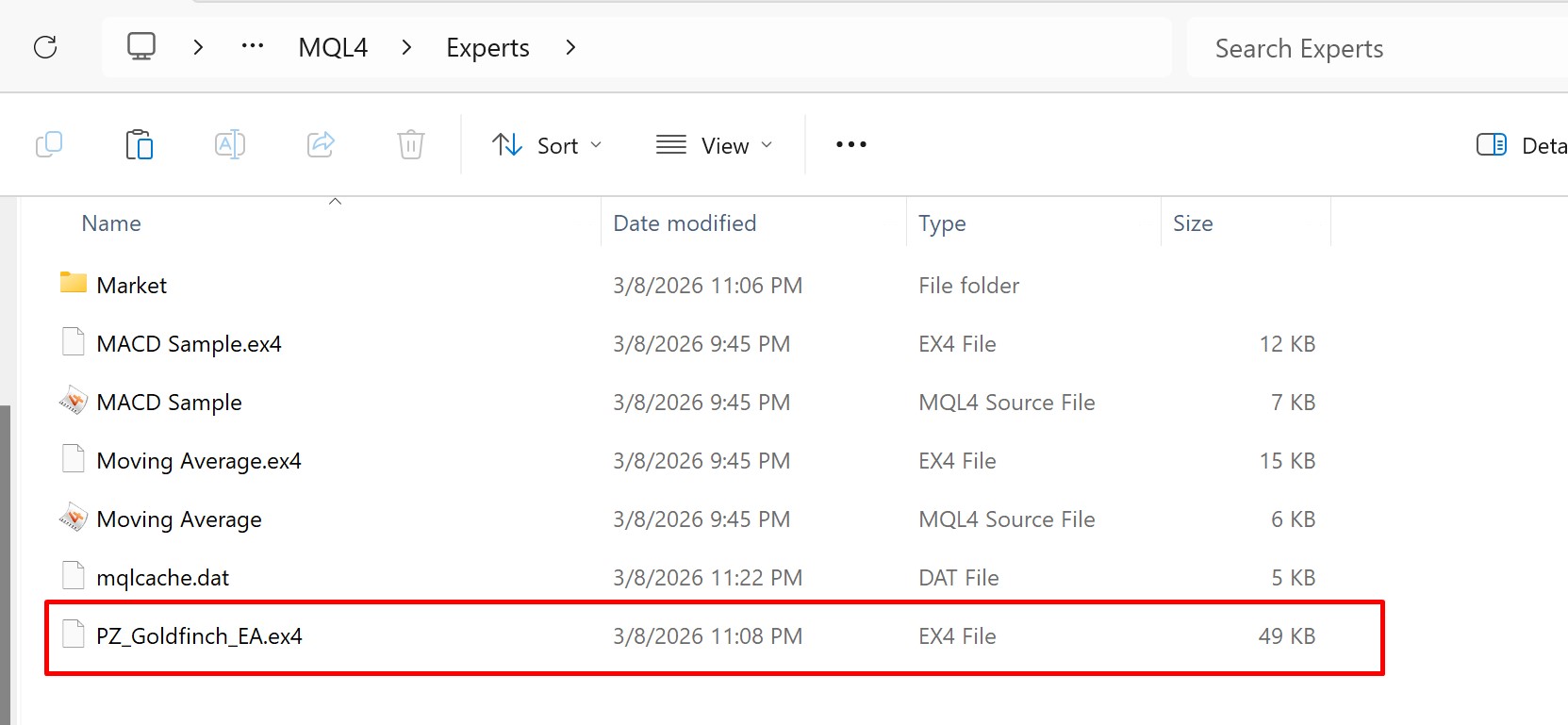
Step 2 — Copy the .ex4 File into the Experts Folder
Paste your .ex4 file directly into the MQL4/Experts folder you just opened. If your EA came with additional files, place them as follows:
- .ex4 file → MQL4/Experts
- .set file (preset settings) → MQL4/Presets
- .dll file (required library) → MQL4/Libraries
Missing .dll files are one of the most common causes of “Initialization Failed” errors. Most EA vendors include a setup readme — check it for any required companion files before proceeding.
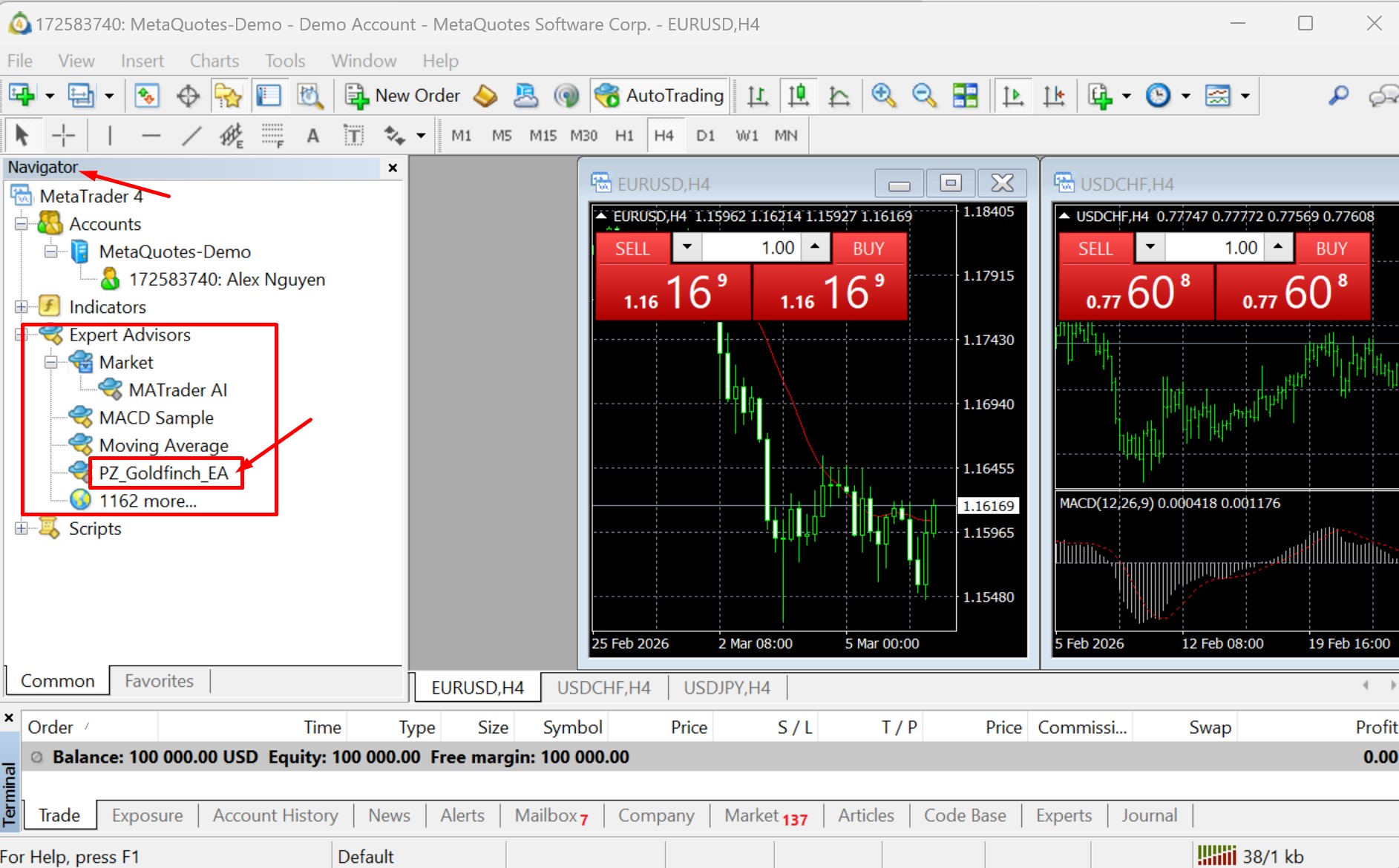
Step 3 — Refresh Navigator or Restart MT4
MT4 does not automatically detect new files added to the Experts folder while the platform is running. You have two options:
- Restart MT4 fully — Close the platform completely and reopen. Most reliable method.
- Refresh Navigator — In the Navigator panel (Ctrl+N), right-click on Expert Advisors and select Refresh. Faster, but occasionally misses newly added files.
After refreshing, expand the Expert Advisors tree in the Navigator. Your EA should appear by filename. If it does not, go back to Step 2 and confirm the file is in the correct folder.
Step 4 — Attach the EA to a Chart
Drag the EA from the Navigator panel and drop it onto the correct chart. Symbol and timeframe matter — always attach an EA to the chart it was designed for. A gold EA belongs on an XAUUSD chart. A EUR/USD scalper belongs on a EURUSD chart at the specified timeframe (usually M5, M15, or H1). Check the EA documentation if unsure.
When you drop the EA onto a chart, the EA Properties window opens automatically. Two tabs matter:
- Common tab — Tick Allow Algo Trading. This is the most frequently missed step. Without it, the EA loads but will never place a trade.
- Inputs tab — EA-specific parameters (lot size, stop loss, magic number). Do not change defaults unless you understand what each setting controls.
If your EA uses external DLL libraries, tick Allow DLL Imports in the Common tab as well. Only do this for EAs from trusted, verified sources.
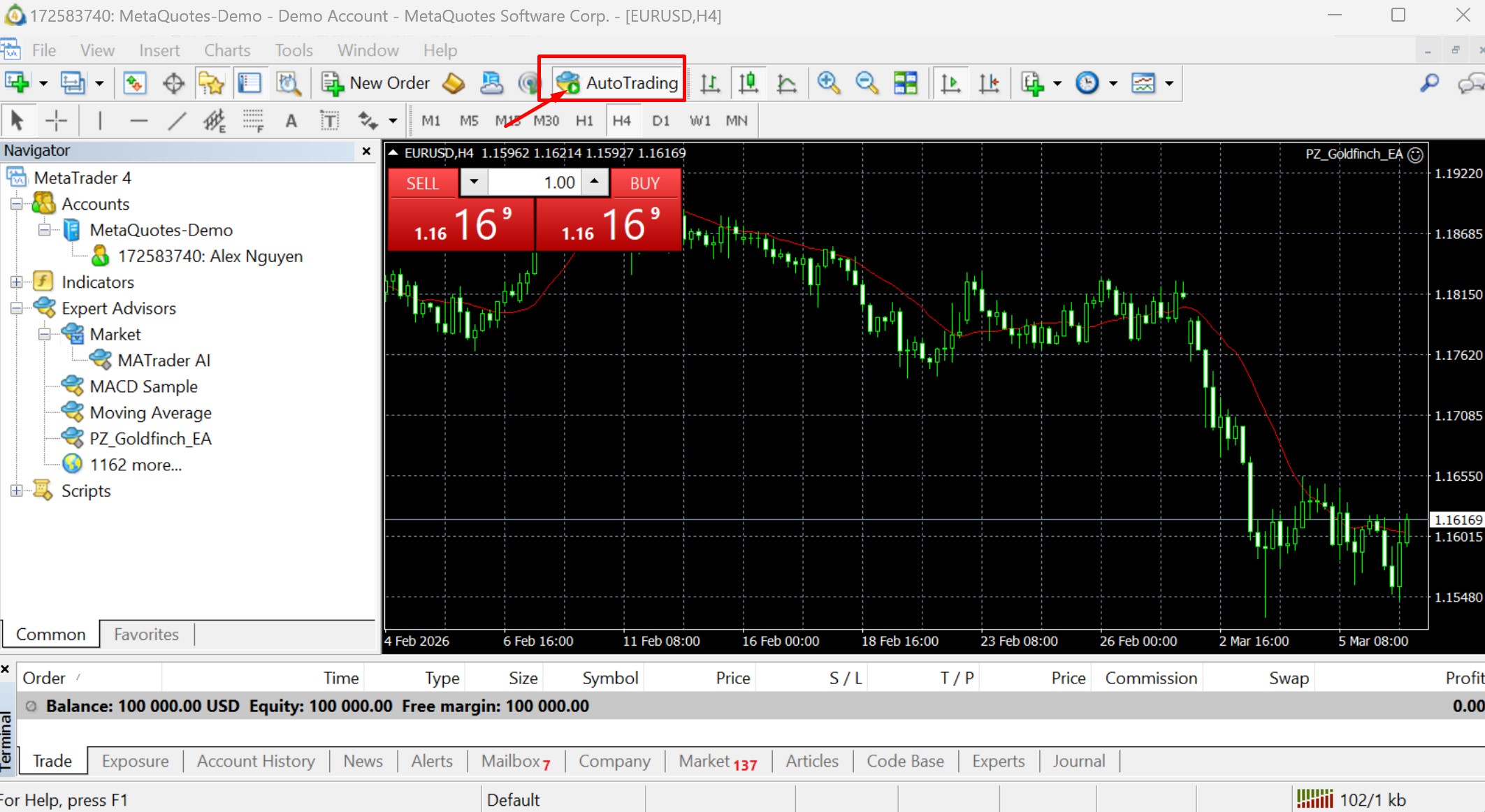
Step 5 — Enable AutoTrading
Locate the AutoTrading button in the MT4 toolbar — it sits in the top toolbar row. Click it until the button turns green. A red button means automated trading is globally disabled, regardless of individual EA settings.
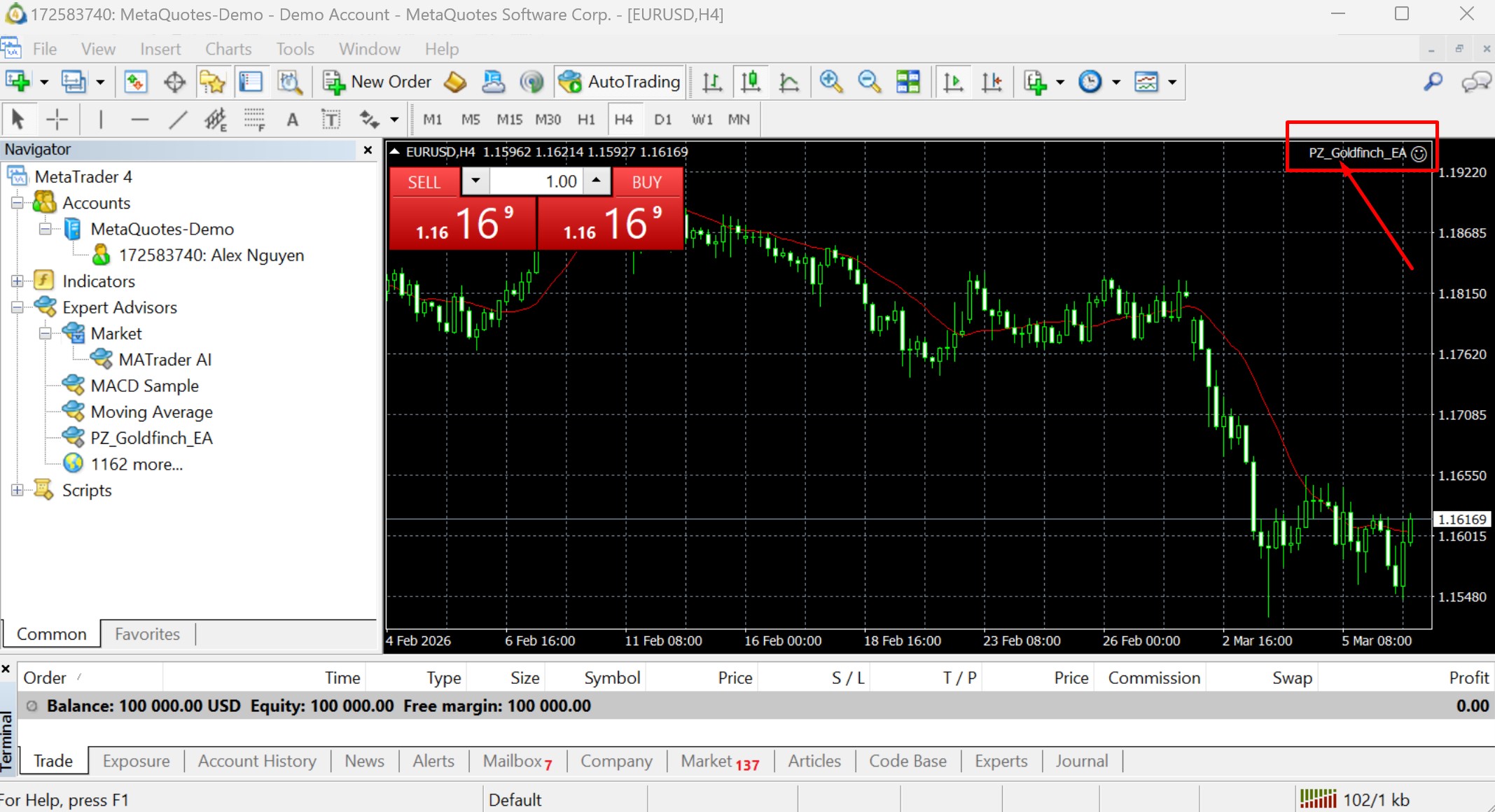
Once AutoTrading is enabled and the EA is attached correctly, look at the top-right corner of your chart:
- Smiley face (☺) — EA is active and scanning the market
- Angry face (☹) — EA is attached but blocked from trading. Check AutoTrading button and the Allow Algo Trading setting from Step 4.
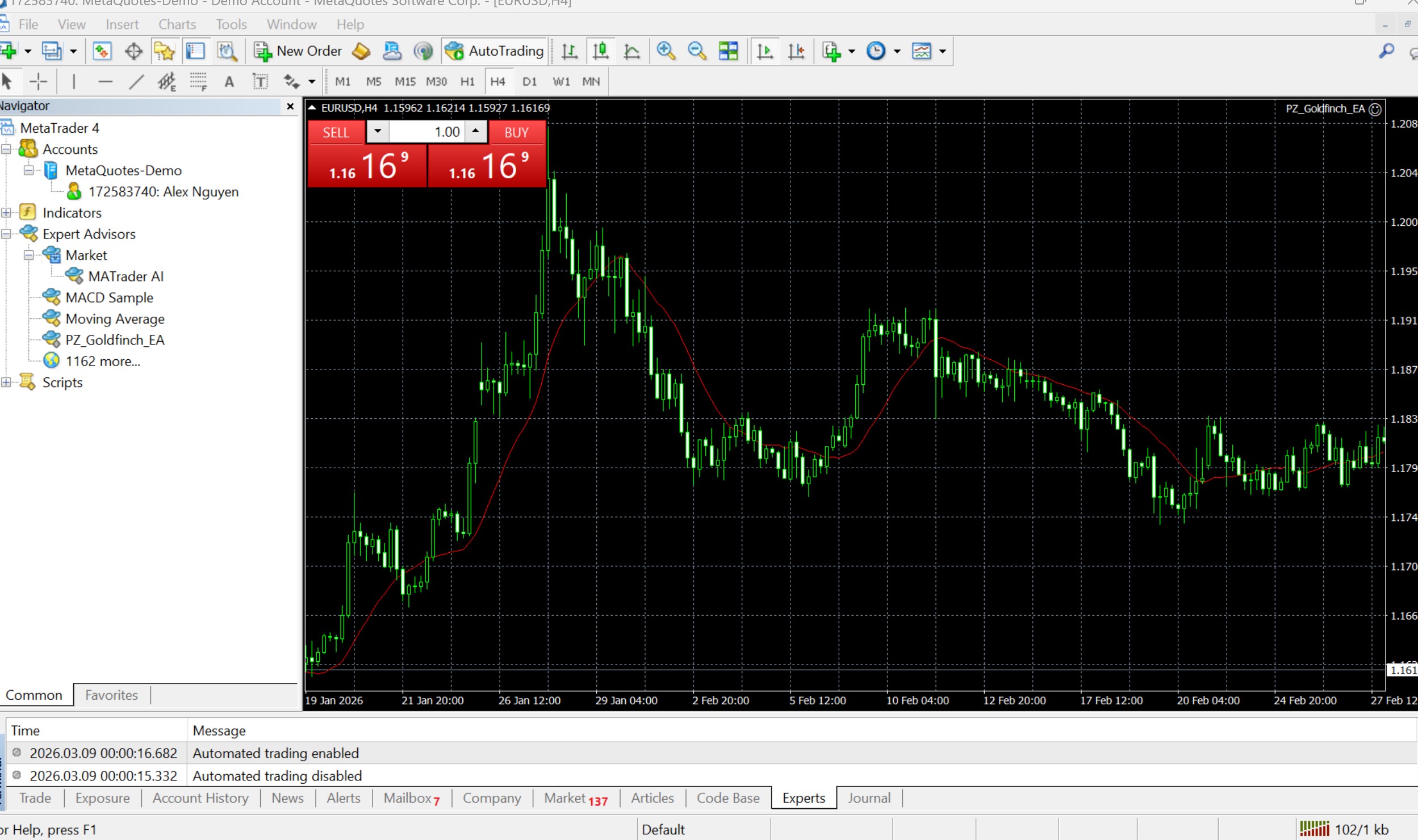
Step 6: Verify in the Experts Tab
Open the Terminal window (Ctrl+T) and click the Experts tab. This log records every action and error your EA generates. A clean log with initialization messages and no errors confirms the EA is running as expected.
If you see red error messages here, do not ignore them — they contain the exact reason the EA is failing. Copy the error text and check the troubleshooting section below before making any other changes.
Installation Checklist
Before assuming your EA is live and trading, run through this checklist:
- .ex4 file is in MQL4/Experts (not MQL4 root or desktop)
- EA appears in Navigator under Expert Advisors
- EA is attached to the correct symbol and timeframe chart
- “Allow Algo Trading” is ticked in EA Properties → Common tab
- AutoTrading button in toolbar is GREEN
- Smiley face is visible on chart (not angry face)
- Experts tab shows no error messages
If all seven are confirmed, your EA is installed and running.
Troubleshooting — 6 Common Installation Errors
1. EA Does Not Appear in Navigator
The file is in the wrong folder, or Navigator has not refreshed. Confirm the .ex4 is in MQL4/Experts specifically — not MQL4 root, not a subfolder. Right-click Expert Advisors in Navigator → Refresh. If still missing, fully restart MT4.
2. “Initialization Failed” Error in Experts Tab
Three most common causes: (a) the EA requires a .dll file that was not copied to MQL4/Libraries, (b) the EA was compiled for a different MT4 build version and is incompatible, or (c) the EA requires a license key that has not been activated. Check the vendor’s installation notes for required companion files.
3. Angry Face on Chart (EA Will Not Trade)
Either the global AutoTrading button is red, or “Allow Algo Trading” was not ticked when attaching the EA. Double-click the EA on the chart to reopen Properties, check the Common tab, confirm the checkbox, and click OK. Then verify the AutoTrading button is green.
4. “DLL Imports Not Allowed” Error
The EA requires DLL access but the permission is blocked. In EA Properties → Common tab, tick Allow DLL Imports. Alternatively, go to Tools → Options → Expert Advisors and enable it globally. Only do this for EAs from sources you trust.
5. EA Is Running but Not Opening Any Trades
The EA is functioning correctly but no signals are triggering. Possible causes: wrong timeframe, wrong symbol, outside of the EA’s permitted trading hours, spread is wider than the EA’s maximum allowed spread, or account balance is too low for the EA’s minimum lot calculation. Check the Experts tab — most well-coded EAs log the reason they are not trading.
6. EA Runs on Demo but Not on Live Account
Your broker may restrict automated trading on live accounts, or your specific account type (e.g., cent account, PAMM account) may not support EA execution. This is a broker permission issue, not an installation error. See the full breakdown of broker TOS compliance for forex EAs — including which account types commonly block automated trading.
EA vs Script vs Indicator — What’s the Difference?
New traders frequently drop the wrong file type into the wrong folder and then wonder why the EA is not showing up. Here is the distinction:
| Type | Lives In | Can Trade? | Runs Continuously? |
|---|---|---|---|
| Expert Advisor (.ex4) | MQL4/Experts | Yes | Yes — runs until removed |
| Script (.ex4) | MQL4/Scripts | Yes (single action) | No — runs once, then stops |
| Indicator (.ex4) | MQL4/Indicators | No | Yes — displays data only |
If your file belongs in Scripts or Indicators but you placed it in Experts, MT4 will either refuse to compile it or behave unexpectedly. Always check the documentation to confirm what type of file you are installing.
Home PC vs VPS — Should You Run Your EA Locally?
MT4 and your EA only run while your computer is on and connected to the internet. A power cut, Windows update restart, or ISP outage at the wrong moment can leave open trades unmanaged — with no stop loss execution, no position management, and no exit.
A forex VPS (Virtual Private Server) keeps MT4 running 24/7 on a remote server regardless of what happens on your home machine. For any EA trading live capital, a VPS is not optional — it is risk management infrastructure. For a full breakdown of how execution latency, server proximity to brokers, and VPS specs affect EA performance, see How Forex Robots Work: The Technical Breakdown.
Next Steps After Installation
Installation confirms the EA can run. It does not confirm it is set up correctly for your account, broker, or current market conditions. Before running any EA on a live account:
- Run the EA on a demo account for at least 2–4 weeks under real market conditions
- Monitor the Experts tab daily during the first week for recurring errors or unexpected behavior
- Verify equity — not just balance — is moving in the right direction. A rising balance with 30% floating drawdown is not a profitable EA, it is a losing one hiding losses
If you have not yet decided which EA to install, the best MT4 forex robots comparison ranks verified EAs by live Myfxbook data — equity, drawdown, and real withdrawal history — not vendor-supplied backtests.
If you want to run an EA specifically on gold (XAUUSD), the best gold forex robot guide covers which systems survived the Feb 2026 geopolitical volatility with equity intact, and which ones were hiding 60–70% floating losses during the same period.
The Oreshnik gold robot was built for XAUUSD specifically and has been running on a verified live account since launch — installation takes the same six steps above.
Frequently Asked Questions
Can I install multiple EAs on one MT4 account?
Yes. MT4 supports multiple EAs simultaneously, one per chart window. Each EA runs independently on its assigned chart. If running more than three EAs on the same machine, monitor CPU and RAM usage — heavy EAs with real-time tick processing can slow execution if resources are constrained.
What is the difference between .ex4 and .mq4 files?
.ex4 is a compiled, ready-to-run EA. Most commercial EAs ship as .ex4 to protect the source code — you cannot read or edit the logic inside. .mq4 is the raw source code written in MQL4. It must be opened in MetaEditor and compiled (F7) to produce an .ex4 before MT4 can run it.
Do I need to keep MT4 open for the EA to trade?
Yes. The EA runs inside the MT4 process — if MT4 closes, the EA stops. If your PC shuts down or loses internet, the EA stops. For any live account trading, run MT4 on a VPS rather than your home computer.
How do I update an EA to a newer version?
First remove the EA from all charts it is running on. Then navigate to MQL4/Experts, delete or replace the old .ex4 file with the new version. Restart MT4 and re-attach the EA to your charts with the correct settings. Never overwrite the file while the EA is actively attached to a live chart.
Can I install an MT5 EA on MT4?
No. MT4 uses MQL4 (.ex4 files) and MT5 uses MQL5 (.ex5 files). The two platforms use different APIs, different order management systems, and different execution environments. An .ex5 file will not open or run on MT4 under any circumstances. If you are running MT5, the installation process is nearly identical but uses the MQL5/Experts folder instead.

Work my fulltime job as the developer and writer for Oreshnikbot.com now. Have been working on forex and forex EAs for 10 years.